
Categories
Categories let you group logos so a given showcase can display only a subset of them — for example, one showcase for "Technology" clients and a separate one for "Finance" clients from the same logo library.
Category filtering is entirely Free — category_filtering in the capability map, confirmed via ADR-016. There is no Pro gate anywhere in this feature.
Creating categories
Go to Logo Slider → Categories.
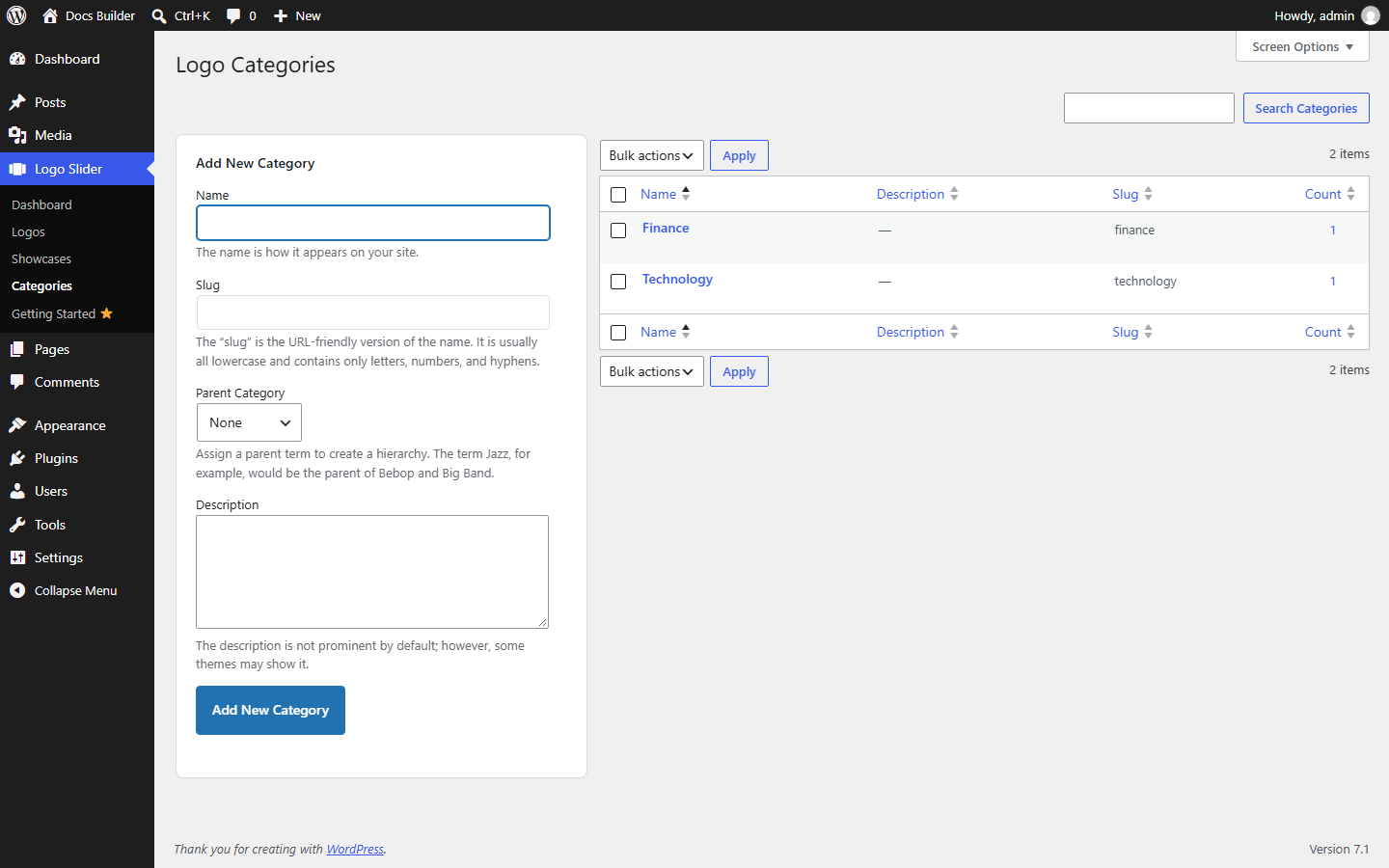
Legend
- Name — required. How the category appears everywhere it's used.
- Slug — optional. Auto-generated from Name if left blank; the URL-friendly version.
- Parent Category — optional. Assign a parent to build a hierarchy (e.g. a "Jazz" parent with "Bebop" and "Big Band" children).
- Description — optional. Not shown by default in any current layout.
- Category list — every existing category, with its slug and a count of how many logos use it.
Assigning a category to a logo
Done from the logo itself: open Logo Slider → Logos, edit a logo, and check the category (or categories) under the Logo Categories panel. See Logos for the full add/edit form.
Filtering a showcase by category
Done in the Showcase Builder's Content tab, under Logo Source:
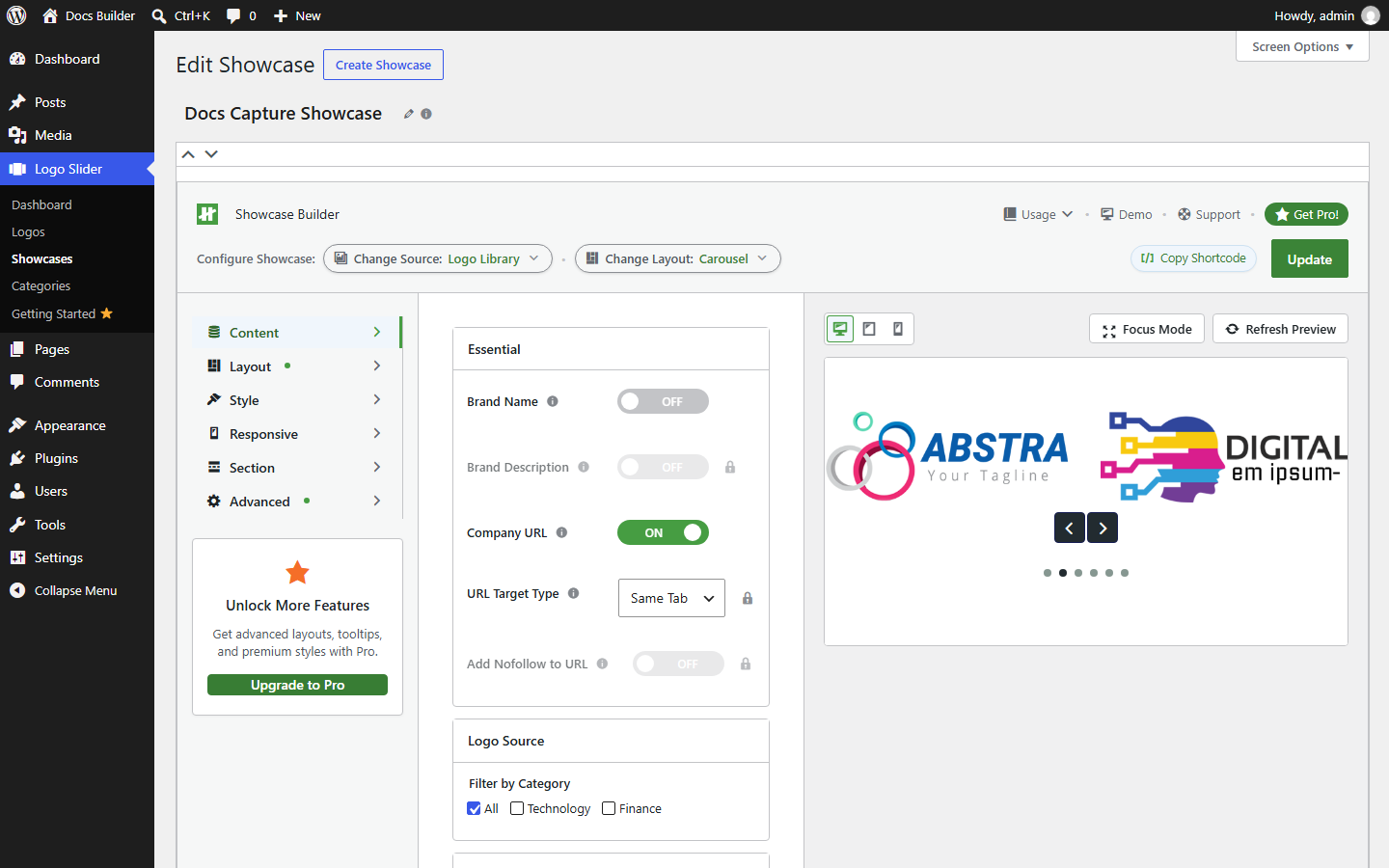
Legend
- Filter by Category — check All to include every logo regardless of category, or uncheck it and select one or more specific categories to show only logos assigned to those.
A logo with no categories assigned won't appear in a showcase filtered to any specific category — if a logo seems to be missing from a showcase, this is one of the confirmed causes. See Support.