
Managing Logos
The logo list
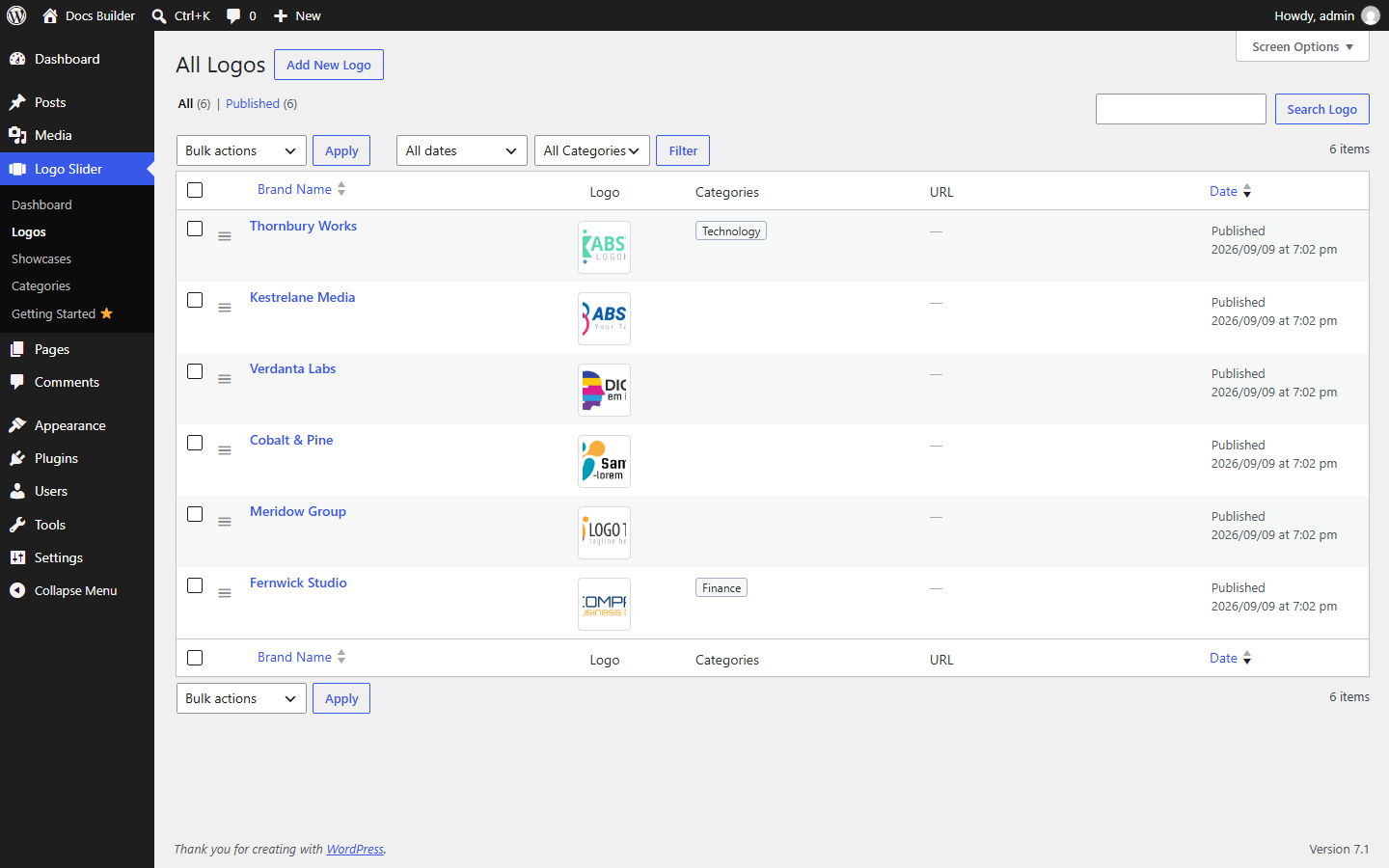
Go to Logo Slider → Logos to see every logo you've added.
Legend
- Add New Logo — opens the logo editor described below.
- Drag handle (the ≡ icon left of each row) — press and drag a row up or down to reorder. Order is saved immediately; no separate "save" step.
- Categories column — shows every category assigned to that logo (blank if none).
- All Categories filter — narrows this list view only; it does not affect what a showcase displays. That's controlled per-showcase in the Showcase Builder — see Categories.
Adding or editing a logo
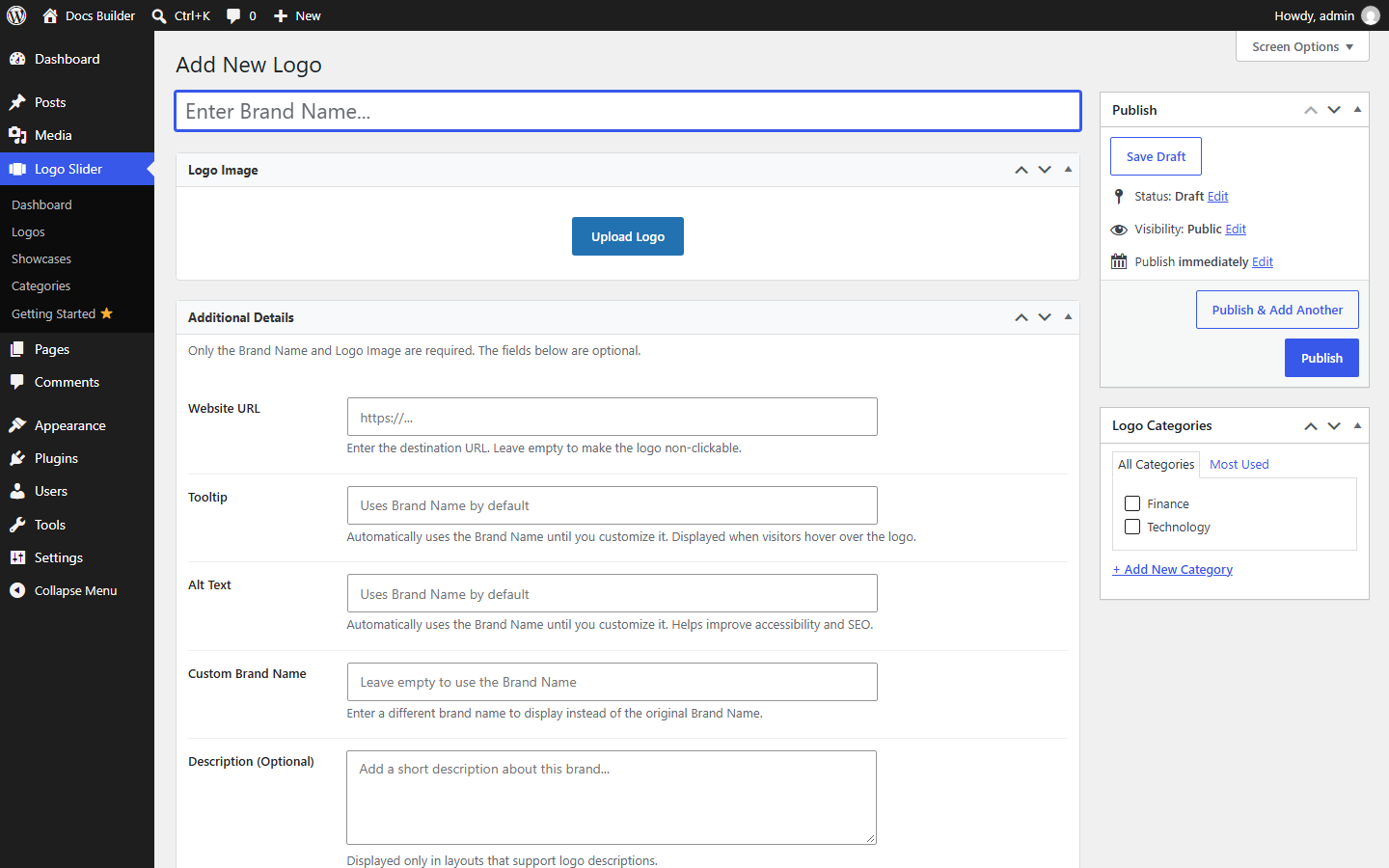
Go to Logo Slider → Add New Logo (or click a logo's name from the list to edit it).
Legend
- Brand Name — required. The only other required field is the Logo Image below it.
- Logo Image — required. Upload via the media library.
- Website URL — optional. Leave empty to make the logo non-clickable.
- Tooltip — optional. Uses the Brand Name by default until customized; shown on hover when the showcase's Tooltip feature is enabled (see Showcase Builder → Advanced).
- Alt Text — optional. Uses the Brand Name by default; improves accessibility and SEO.
- Custom Brand Name — optional. Displays instead of the original Brand Name without renaming the underlying entry.
- Description — optional. Tagged Pro-only in the capability map (
brand_description_toggle) and only shown in layouts that support it — see Free vs Pro. Unlike the Pro-only fields in the Showcase Builder, which visibly grey out behind a 🔒 icon, this textarea appears fully editable in the screenshot, with no lock styling of any kind. Whether a Free install actually enforces the Pro gate here hasn't been verified — treat it as unconfirmed rather than assuming either way. - Logo Categories — check any existing categories, or add a new one inline. See Categories for how categories drive showcase filtering.
- Publish — Brand Name + Logo Image is enough to publish; everything else can be filled in later.
Logo height and width
Height and width are controlled per-showcase in the Showcase Builder's Style tab, not per-logo. Height, and Width itself, are Free; only the Max Width option under Width is unlocked in Free — other width modes are Pro. See Settings Reference for the exact fields.
Image format guidance
Two tips carried forward from the plugin's own onboarding screen, since they're real, verified guidance worth keeping even as that screen gets repurposed:
- PNG or SVG logos give the best quality and transparency.
- Use appropriately sized images — oversized files slow down your page.
What happens if a Pro field gets locked
In the Showcase Builder, a 🔒 next to a field means it's view-only on Free (or after downgrading from Pro) — you can see it, not edit it. Any value you'd already saved stays exactly as it was; it's never reset. See Free vs Pro → If you downgrade. The Logo edit screen's own Description field doesn't show this same lock treatment — see the gap noted above.